Free webinar Oct 14 with Sovos ShipCompliant: the five imagery gaps that cost wineries the sale.
Save your seat
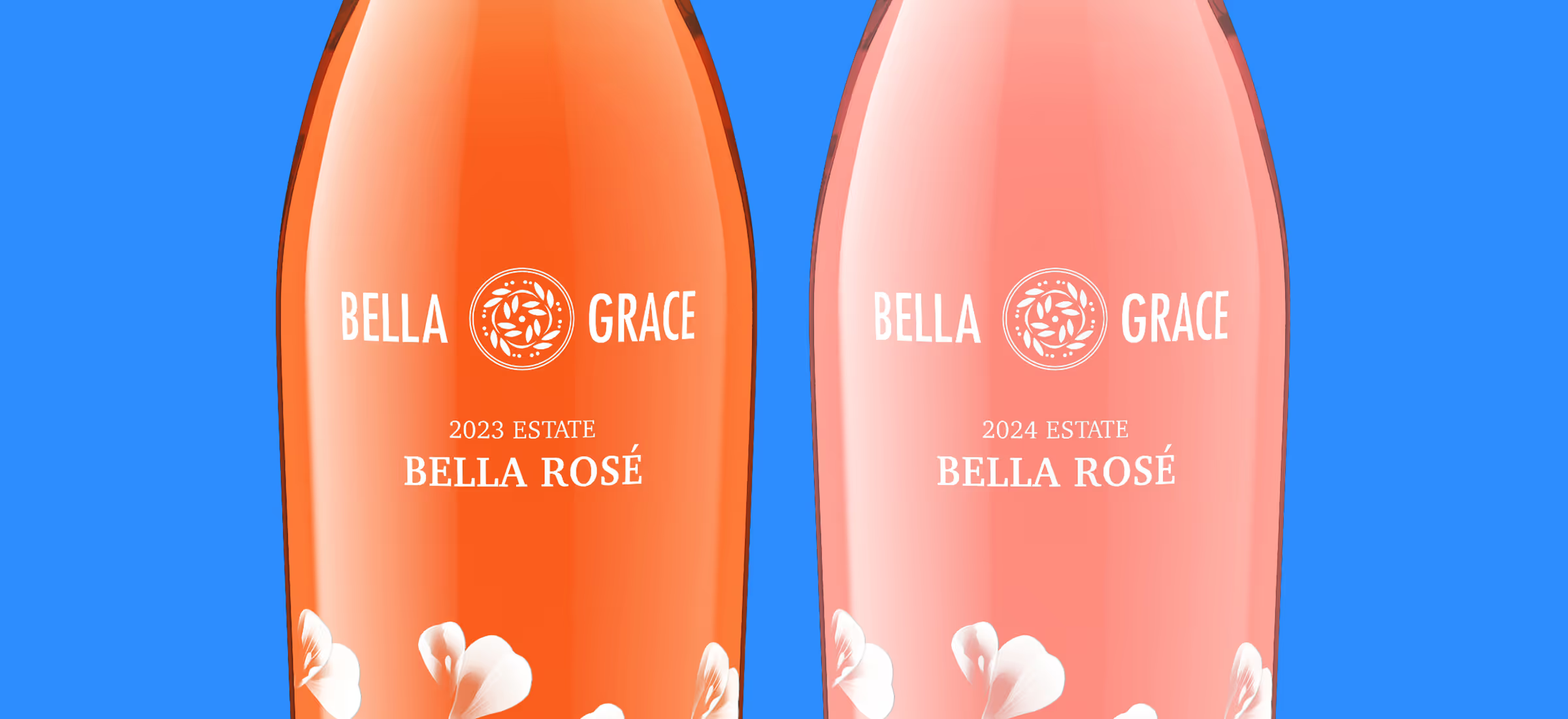
Two Bella Grace Rosé wine bottles side by side for 2023 and 2024 estate vintages.
Guides
Outshinery toolkit
Updating a shot you already have

Updating a shot you already have

4 min read

You already have a Product Shot. Something changed, a new vintage, a label tweak, a different liquid color, and you need the image to match. You do not need to brief it from scratch.

This page walks you through what counts as an update, what we need from you, what is included at no extra cost, and what adds Shine Credits. It also covers the few cases where a change feels like an update but is faster to brief as a new shot.

Start here. The answer decides which form you fill out.

Brief an update when the container stays the same and the details change:

  • Vintage swap
  • Alcohol percentage change
  • Liquid color change
  • Small label tweak
  • New closure finish on the same closure type

Brief a new shot when the product itself is different:

  • New container or bottle shape
  • New SKU
  • New format or size
  • A brand-new label, not a tweak to the existing one

If you are unsure, the rule of thumb is simple. If we would need to build a new 3D model to make the change, it is a new shot. If we can work from the model we already built for you, it is an update.

Start here

Step 1. Point us to the existing image

The form first asks: was the original Product Shot created after September 2024?

  • Yes. Use the dropdown to filter your past renders, then select the right one from its thumbnail. Click the tile to see it larger and confirm you have the correct image.
  • No. Type the name of the Product Shot you want to update in the field provided. Make sure Outshinery created the original shot you are referring to, we update our own renders only.

Step 2. Confirm the container type

Select the container the shot uses. This helps filter out what you are looking to update in your library.
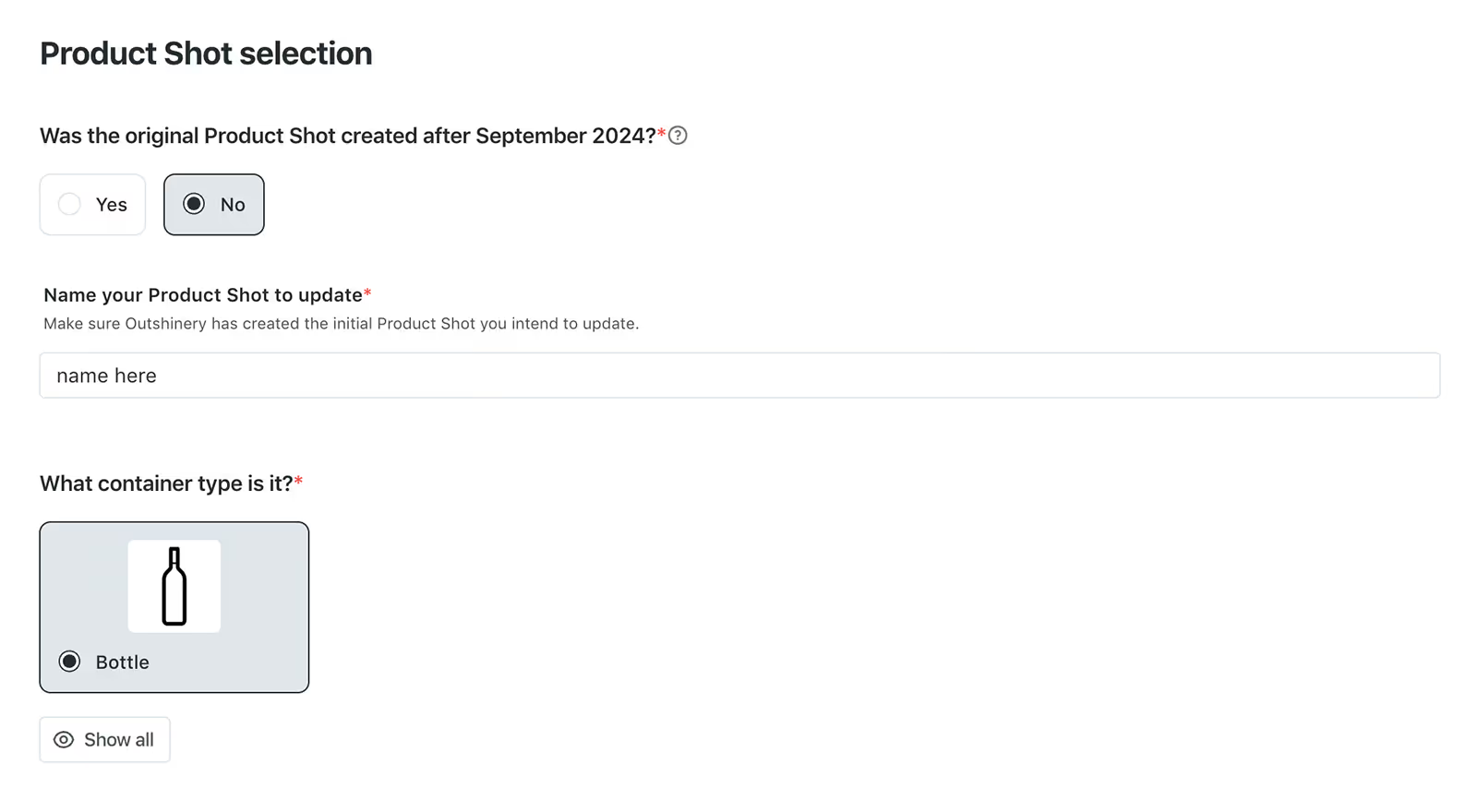
Form titled Product Shot selection with options for creation date, product name input, and container type bottle selected.Where an update begins. Confirm when the original Product Shot was created, point us to it from your past renders, and select the container. Next, you tell us what changed.

Step 3. Select all the updates that apply

This is where you tell us what changed. Some updates are included at no extra cost. Others are add-ons that use Shine Credits. You can select more than one.

Step 4. Add new label files if the label changed

If your update involves any label change, upload the new print-ready label file. A photo of the label or a low-res PDF will slow the work down.

Step 5. Confirm the container, closure, and finishes are unchanged

An update assumes the packaging itself is the same. If the container, closure, or finish has actually changed, see the last section, it may be a new brief.

What each update covers

Included at no extra cost

  • Vintage. Change the vintage year on the label. The most common update, and free. This keeps your shots accurate release to release instead of reusing last year's image with the wrong year on it.
  • Alcohol percentage. Update the ABV printed on the label.
  • Liquid color. Adjust the color of the wine inside the bottle, for example a rosé that came in lighter or deeper than the original render.
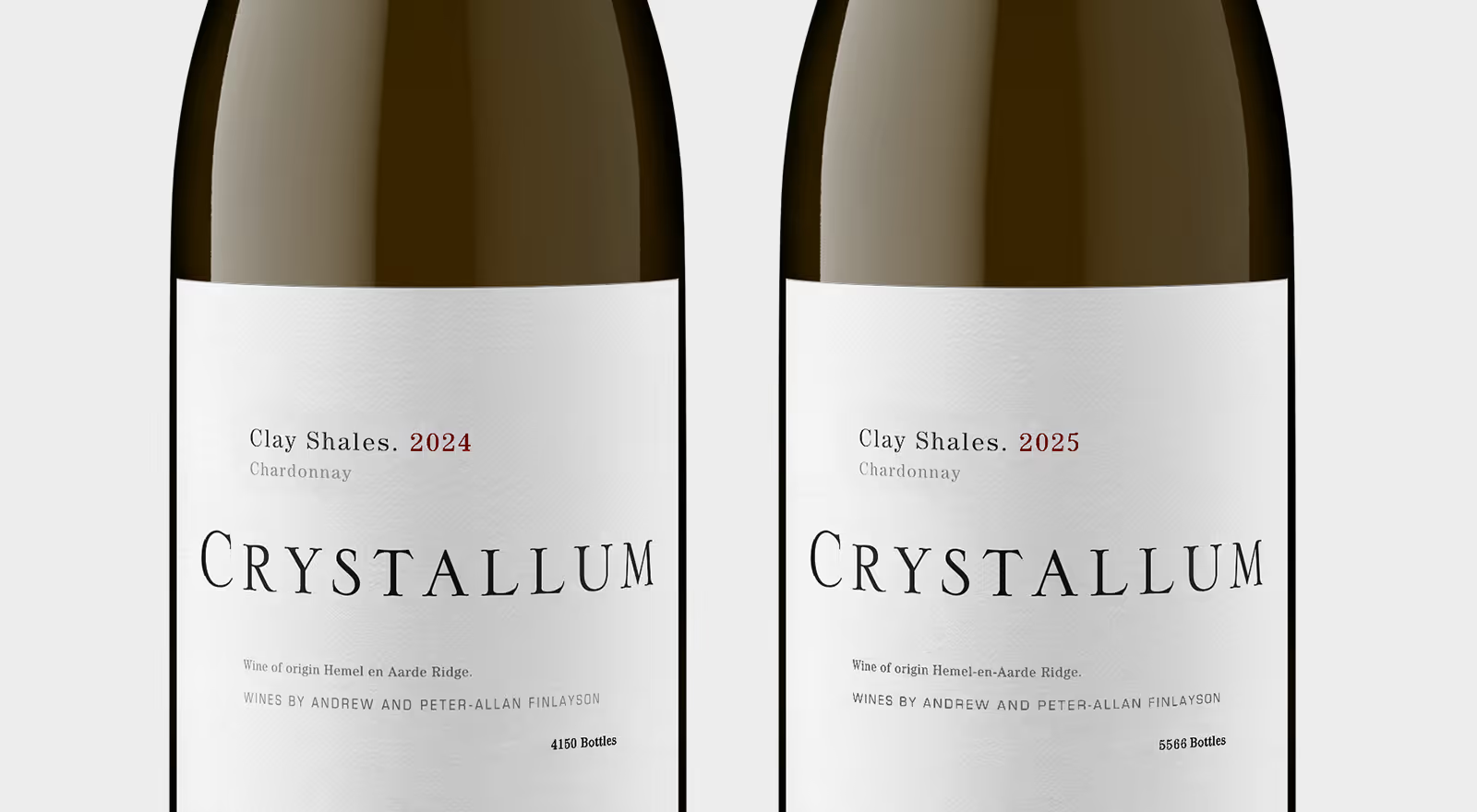
Two Crystallum Clay Shales Chardonnay wine bottles, vintages 2024 and 2025, with bottle counts on labels.One image, two changes. The vintage moved from 2024 to 2025, and the production number printed on the label changed with it. Both are handled in a single update.

Add-on updates

  • Packaging material and/or closure (0.5 Shine Credit). A change to the capsule, closure finish, or label stock on the same packaging.
  • Small change on label (0.5 Shine Credit). A minor edit to the existing label artwork, not a full redesign.
  • Wet-look with water droplets (spritzed) (1 Shine Credit). This is essentially an additional image, the same shot with condensation and water droplets added. Typically used for white wines and rosés to signal chilled and ready to pour.
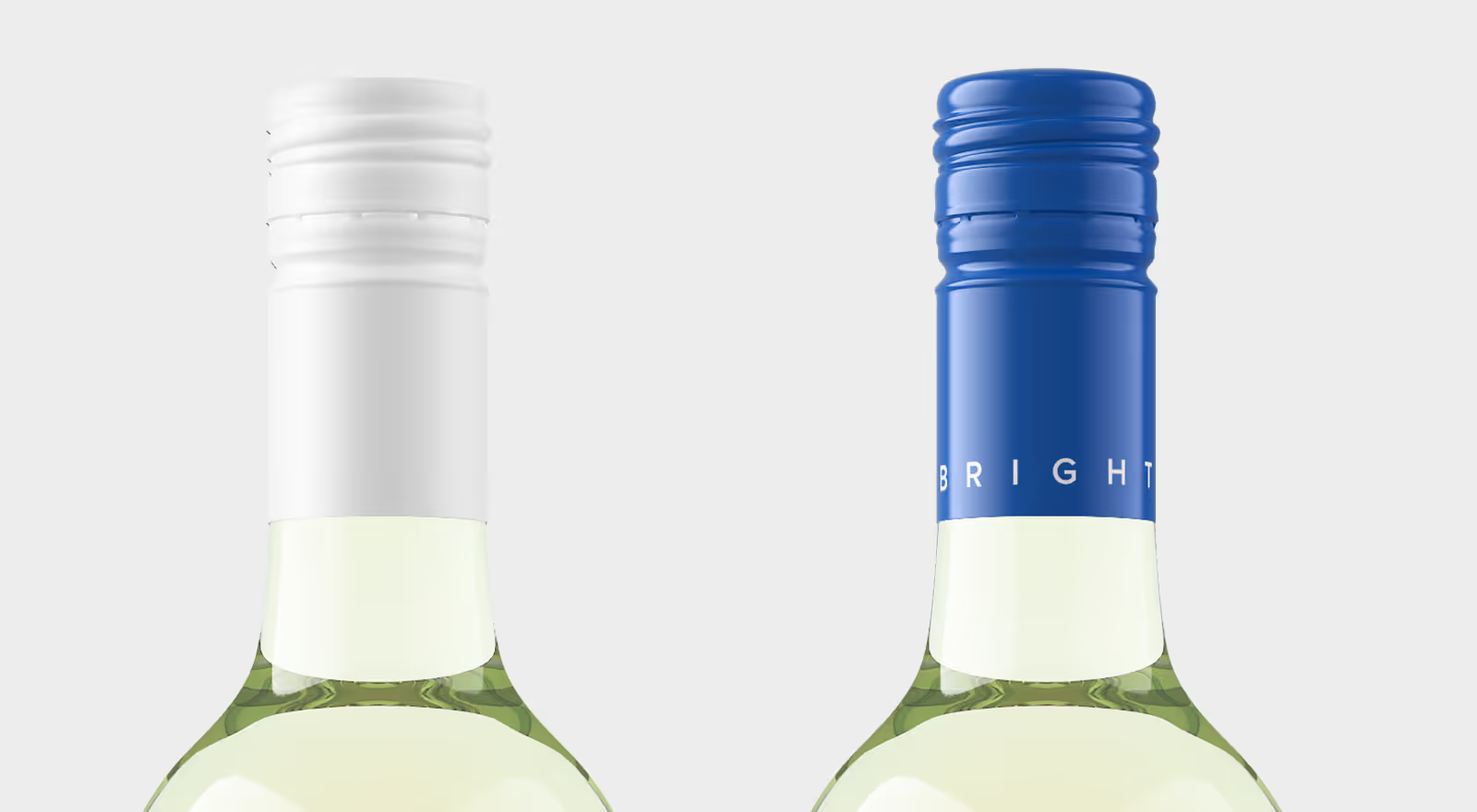
Close-up of two white wine bottle necks, left with white cap, right with blue cap labeled BRIGHT.A closure update. This screwcap went from a plain stock cap to a custom branded one as the wine caught on. Swapping the capsule or closure finish is a packaging update that uses 0.5 Shine Credit.

Turnaround

  • Regular: around 5 business days.
  • Rush: 2 business days or sooner.

When to brief as new, even though it feels like an update

A few changes look like updates but need a new 3D model, which means a new brief:

  • A different bottle shape or mold, even for the same wine.
  • A new format or size, for example moving from 750ml to magnum.
  • A full label redesign rather than a tweak.
  • A new closure type, not just a new finish on the same closure.

Briefing these as new from the start is faster than starting an update and having us route it back to you. If you are not sure which path applies, send us the existing shot and a note on what changed, and we will point you to the right form.

Reserve Pinot Noir wine bottle seen up close on black background
Laurie MillotteYana
Let's talk about what Outshinery can do for you

Book a 20-min call to see how Outshinery's photorealistic approach can effectively address all your product imagery needs, once and for all.

Schedule a call
Extend your learning

See the impact of premium visuals

Get professional, photorealistic images for your brand without the hassle of traditional photoshoots. Outshinery makes it easy, fast, and affordable.

Try Outshinery for FREE
No credit card required.
Wine bottle shots by Outshinery, try the free sample
We use cookies on the Outshinery website to make the experience delightful for you and purposeful for us.